The reliable way to keep two time zones in view is to pick a city, not an offset, and put it somewhere you look anyway. Family abroad, a remote team, a market that opens at someone else’s nine o’clock: all of them go better when the other time is on screen instead of in your head. Here is how to do it on each device, and the mistakes that catch people out.
On iPhone
- Open the Clock app and tap World Clock.
- Tap + and search for the city. Pick a city in the same time zone if yours is not listed.
- The list shows each city’s time and how many hours it is ahead or behind.
Then put it where you will see it without opening the app:
- Home Screen: touch and hold the Home Screen, tap Edit, then Add Widget, and search for Clock. The small City widget shows one city as an analog face; the medium World Clock widget shows four. Touch and hold the widget and choose Edit Widget to change the city.
- Lock Screen: touch and hold the Lock Screen, tap Customize, choose Lock Screen, and add a small city clock under the time.
- StandBy: add the same widgets to a stack in StandBy’s widget view while the iPhone charges on its side.
Our guide to the analog clock widget has the steps in more detail.
On a Mac
The menu bar clock shows one time zone, and macOS has no setting for a second one. Use the World Clock widget instead:
- Click the date and time in the menu bar to open Notification Center.
- Click Edit Widgets at the bottom.
- Search for Clock, choose a size, and drag it into Notification Center or onto the desktop.
- Control-click the widget and choose its edit option to change the cities.
Desktop widgets fade into the background when a window is in front, so they are easiest to read on a second monitor.
On Windows
- Open Settings › Time & language › Date & time.
- Under Related links, choose Additional clocks.
- Tick Show this clock, pick the time zone and give it a name. You can add two.
The extra clocks appear when you click or hover over the clock in the taskbar.
In Google Calendar
On the web, open Settings › General › Time zone, tick Display secondary time zone and pick the zone. Calendar then shows a second column of hours beside your own, which makes it easy to see when a meeting falls in someone else’s working day.
Mistakes that cause missed calls
- Using an offset. “UTC+1” is fixed. Paris is UTC+1 in winter and UTC+2 in summer. Always choose a city.
- Forgetting that daylight saving changes on different dates. The United States moves its clocks on the second Sunday of March and the first Sunday of November. The European Union moves on the last Sunday of March and the last Sunday of October. For a few weeks each spring and autumn, the gap between New York and London is an hour smaller than usual. Many places, including most of Asia, do not change at all.
- Assuming whole hours. India is 5 hours 30 minutes ahead of UTC, Nepal 5 hours 45 minutes, and Newfoundland 3 hours 30 minutes behind. A clock that only offers whole-hour offsets gets these wrong.
- Mixing up the date. When it is evening in California it is already the next morning in Tokyo. A 24-hour clock or a clear AM and PM helps.
- Writing a time without a zone. When you suggest a time to someone abroad, give both: “4 pm London, 11 am New York”.
A big clock for each place
Widgets are small. If the second time zone matters all day, give it a whole screen.
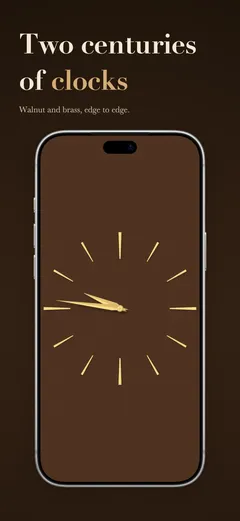
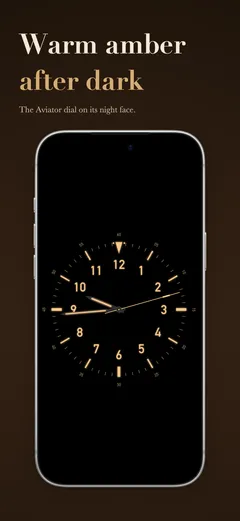
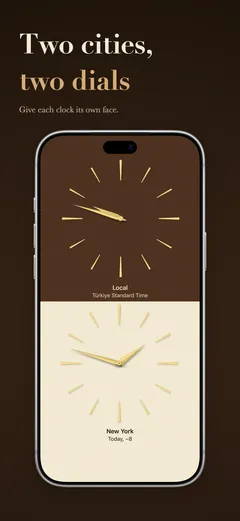
Lume Clock for iPhone and iPad has Dual Time: two full watch dials side by side, each with its own city and its own dial, so home and away never look alike. It works in any time zone, including half and quarter-hour ones, and splits along the longer side of the screen, so it suits an iPad on the desk or an iPhone on its side. The Dual time widget puts both clocks on the Home Screen in medium, large and, on iPad, extra large. Dual Time is part of Lume Clock Pro, a one-time purchase; the app itself is free to download.
The free online clock on this site shows the time of the device it runs on, so it suits a single local clock on a spare monitor or tablet rather than a second zone.