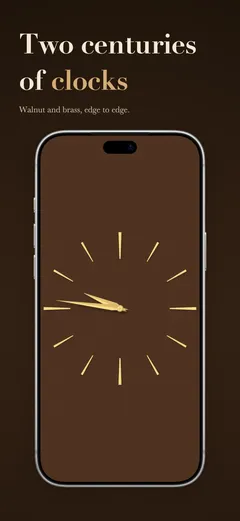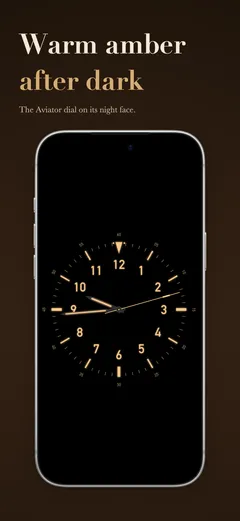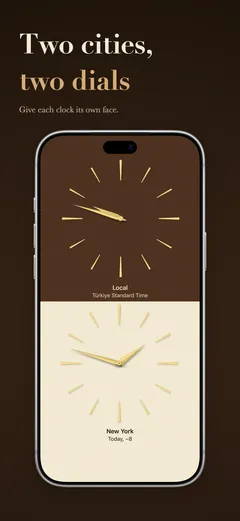
An iPhone can show a clock face in three places: the Home Screen, the Lock Screen and StandBy. Apple’s own Clock app already has an analog widget for each. This guide shows how to add them, what they cannot do, and when a clock app’s widgets are worth it.
The built-in Clock widgets
The Clock app ships with a few widgets you can use straight away:
- City (small): one analog clock face with a city name. Edit the widget to choose the city.
- World Clock (medium): four cities in a row, each with a small analog face.
- On the Lock Screen: a small round city clock that sits under the time.
They are plain, readable and free. If you only want a dial on the Home Screen, start here.
Add an analog clock to the Home Screen
- Touch and hold an empty part of the Home Screen until the apps jiggle.
- Tap Edit in the top-left corner, then Add Widget. On iOS 17 there is a + button in the same corner instead.
- Search for Clock, or for the clock app you want to use.
- Swipe through the sizes, then tap Add Widget.
- Drag the widget where you want it and tap Done.
To change the city, touch and hold the widget and choose Edit Widget.
Add one to the Lock Screen
- Unlock the iPhone with Face ID or Touch ID, but stay on the Lock Screen.
- Touch and hold the Lock Screen until Customize appears, and tap it.
- Choose Lock Screen.
- Tap the widget row under the time, then pick a clock widget from the list. Round widgets take one slot; rectangular ones take two.
- Tap Done.
What you cannot do is turn the big Lock Screen time into an analog clock. iOS draws that clock itself and no app can replace it or draw over it. Apps that promise an analog Lock Screen clock either use a small widget under the time or a wallpaper with a dial printed on it, with the system time still on top.
Add one to StandBy
StandBy is the clock mode an iPhone enters while it charges on its side (see iPhone StandBy mode for setup).
- Start StandBy, then swipe left or right to the widget view, with two stacks side by side.
- Touch and hold one of the stacks and unlock the iPhone if asked.
- Tap the + button, pick a clock widget, and tap Add Widget.
- Tap Done. Swipe up or down on a stack to move between its widgets.
StandBy uses small widgets, so a clock app needs a small size to appear here. With Night Mode on, StandBy turns widgets red in a dark room.
Why widget hands move once a minute
A widget is not a tiny app that runs all the time. iOS asks the app for a list of snapshots in advance and shows each one at its time. That saves battery, but it means most clock widgets only update the hour and minute hands once a minute, and most show no second hand at all.
Some apps get around this with tricks that are not part of Apple’s public tools, and those can stop working after an iOS update. If a ticking second hand matters to you, check that the app says how it draws it, and expect it to pause on an always-on display, where iOS slows updates further.
When a clock app’s widgets are worth it
The built-in widgets are one style in black or white. Reasons to add another:
- You want a particular look, such as a dive watch, a field watch or a dress dial.
- You want two cities with different faces so you can tell them apart at a glance.
- You want a ticking second hand on the Home Screen or in StandBy.
- You want the widget to match a full screen clock on the nightstand.
Lume Clock has widgets for all three places:
- Home Screen: small, medium and large, plus extra large on iPad.
- Lock Screen: circular, rectangular and inline.
- StandBy: through the small widgets, with the red night rendering.
On the Home Screen and in StandBy its widgets show a second hand that ticks each second, in the clock’s own hand style; on an always-on display it hides. Tap a widget’s dial to step to the next dial. The widgets are free and follow the clock you design in the app, from 143 dials and 20 lume colours. Giving each widget its own dial or city, and the Dual time widget with two clocks, are part of Lume Clock Pro.
The app also has a matching dial wallpaper for the Lock Screen and a Control Center control that opens the clock on iOS 18 and later.
Not on an iPhone?
On a tablet, laptop or spare monitor you do not need a widget. The analog clock on this site fills the whole screen in any browser and keeps it awake while it runs.