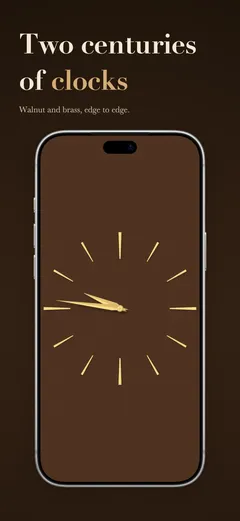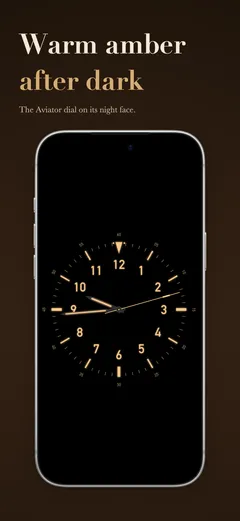
A clock is the most static thing you can put on a screen: the same dial, the same markers, in the same place, for hours. On most screens that does no harm. On OLED screens, months of the same bright image can leave a faint permanent shadow. This page explains which screens are at risk and what to change so a bedside or desk clock can run every day without worry.
Burn-in versus image retention
- Burn-in is permanent. Each pixel on an OLED screen makes its own light and wears a little as it does. If some pixels shine brightly for far longer than their neighbours, they age faster, and the pattern stays visible as a faint ghost on grey or white.
- Image retention is temporary. An LCD can hold a faint trace of a static image after it changes, but it fades on its own, usually within minutes or hours.
So the first question is what kind of screen you have.
Which screens are OLED
iPhone. iPhone X and every later model use OLED, apart from iPhone XR, iPhone 11 and iPhone SE, which use LCD. On Apple’s spec pages, OLED iPhone screens are called Super Retina XDR; the LCD ones are Retina HD or Liquid Retina HD.
iPad. iPad Pro from the 2024 model on uses OLED, listed as Ultra Retina XDR. iPads with a Liquid Retina or Retina screen are LCD. The 12.9-inch iPad Pro models with Liquid Retina XDR use mini-LED, which is an LCD with a fine backlight and does not burn in the OLED way.
Laptops and monitors. Most are LCD. OLED monitors and laptops do exist, especially for gaming and photo work; the spec sheet will say OLED or QD-OLED if yours is one.
TVs. Many recent TVs are OLED. A clock on a TV browser all day is the riskiest setup in this list, because TVs are bright and big markers stay put.
How much risk is there?
Less than the stories suggest. Modern OLED screens shift pixels slightly, compensate for wear and dim static content on their own. The cases people photograph usually involve months of the same bright, high-contrast image at high brightness, such as a navigation bar or a game score. A dim clock at night, turned off or dimmed when the room is dark, is far from that.
Still, the wear adds up, so it is worth taking the cheap steps below.
Settings that reduce wear
- Lower the brightness at night. Wear rises with brightness. Turn on Auto-Brightness, or turn the brightness down before bed.
- Use a dark face. On OLED, black pixels are off. A dial with light markers on black lights far fewer pixels than a white dial.
- Use a red night face. Red lights only part of each pixel. StandBy’s Night Mode does this on iPhone, and the night clock on this site does it in any browser.
- Let the screen sleep when nobody is looking. In Settings › StandBy › Display, the automatic option turns the screen off in a dark room when you are not using it. Choose it unless you need the time visible all night.
- Move the image. A clock that drifts a few pixels now and then spreads the wear across neighbouring pixels.
- Change the face now and then. Switching between analog and flip, or between two dials, means different pixels carry the load.
Is your screen already marked?
Open a plain mid-grey image full screen at full brightness and look for shapes that do not belong. If you see a faint clock, it is either image retention, which will fade after some hours of normal use, or early burn-in. Rest the screen with normal varied use for a day and check again. If it remains after that, it is permanent, and the steps above help keep it from getting stronger.
How this site’s clock and the app handle it
The free online clock shifts the analog dial by a few pixels every minute and has a dim red night face. With Reduce Motion turned on in your system settings it stays still, so on an OLED screen leave Reduce Motion off or use the night face.
Lume Clock for iPhone and iPad has burn-in protection that moves the dial 3 points each minute, and it is free, never locked behind Pro. Its Keep screen on setting defaults to While charging, so the clock does not hold the screen on when the phone is off the charger, and its night mode follows the system for free, or with Pro runs from sunset to sunrise or on your own schedule.